In OCRIS Mobile, all data is collected against "projects" and "sites" (note: these terms can be renamed/remapped to something different, but this documentation will use the official terminology). A project is a collection of sites. Each site belongs to a single project.
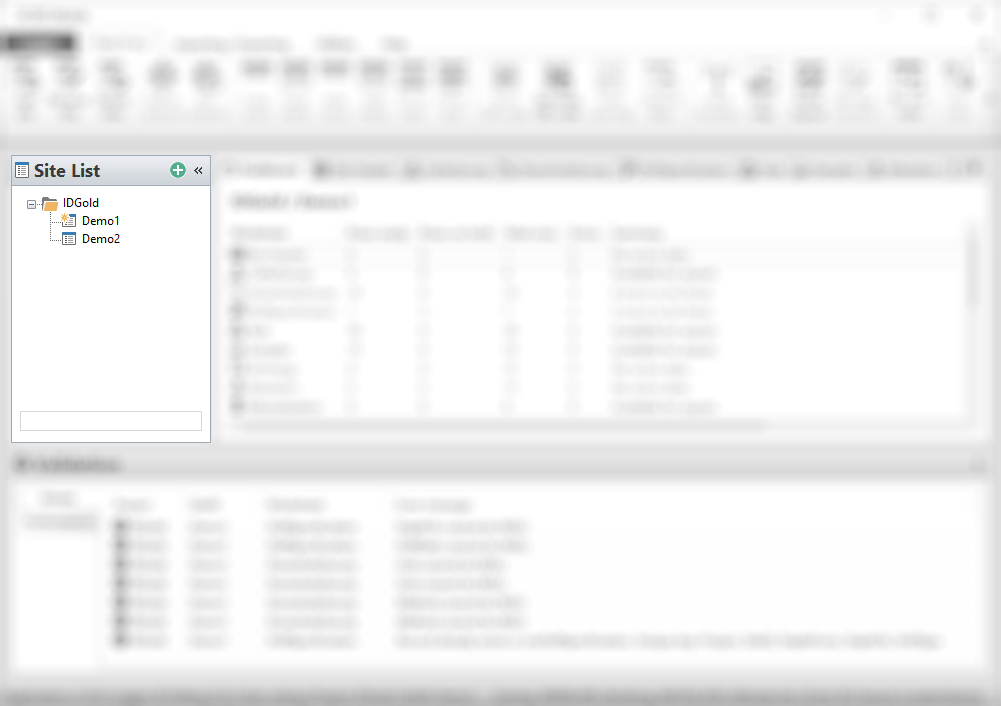
On the left of the OCRIS Mobile UI, there is a site list column. This shows a list of all projects and sites that are available within the logger.
You can select a site by left-clicking on it. The currently selected site will be marked with a star icon, and displayed on the status bar at the bottom of the application.
Creating a new site
To create a new site, click on the green "plus" icon in the top-right of the site list, or click on the Add site button on the top ribbon menu. You will be presented with the 'Create Site' interface, allowing you to create either a single site (by specifying a project and a single site ID), or multiple sites (by specifying a project, site ID, count, and increment).
Creating a single new site
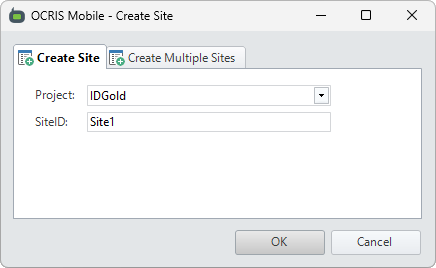
This option creates a single new site, with the specified project and the specified site ID.
Creating multiple new sites
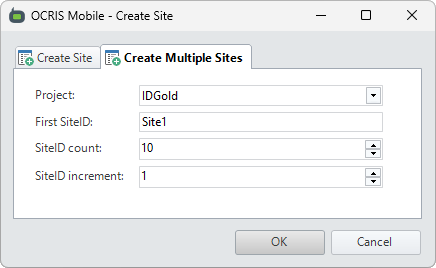
This option creates multiple new sites, with the specified project and site ID generated from the specified pattern.
For example, if you specified the first site as Site1, a count of 10, and an increment of 1, then the following sites would be generated: Site1, Site2, Site3, Site4, Site5, Site6, Site7, Site8, Site9, and Site10.
Site dashboard
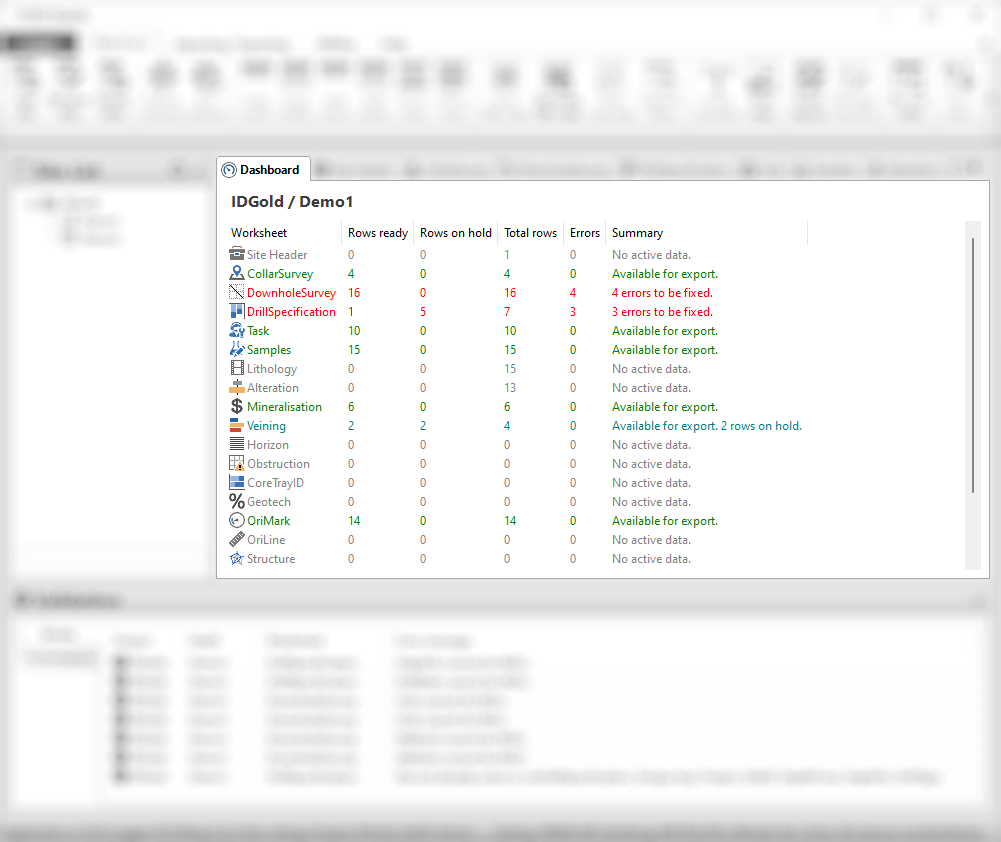
Once you have selected a site, the first tab you will see in the worksheet area is the site dashboard. The site dashboard provides an overview of all the worksheets within that site. It shows you the total number of rows in each worksheet, as well as how many of them are ready for export, and how many are on hold. It also shows the number of errors that need to be fixed.
The site dashboard is a good place to get an overview of the selected site.
Comments
0 comments
Please sign in to leave a comment.