The following mapping and location options are available:
Insert location
OCRIS Mobile supports the use of GPS to enter coordinates. It is possible to use in-built or external GPS connected via Bluetooth or USB. Before using this function check in the computers Device Manager to check if a GPS is available.
The Worksheet/s that will utilise GPS has been configured by your system administrator and OCRIS Mobile will automatically enable the functionality when you have selected the appropriate Worksheet. OCRIS Mobile will check if a GPS is available and will display the status in the bottom right hand side of the app.
If no GPS is available it will display GPS: Searching for sensor...:
If a GPS is connected and OCRIS Mobile is searching for a valid input string it will display GPS: Waiting for data...:
When valid GPS data is available it will display the coordinates and zone:
To retrieve your location data from the GPS, select the correct worksheet, typically Collar Survey or Point Sampling, select the row and click on the Insert location button. OCRIS Mobile will write the current coordinates into the relevant cells on the row.
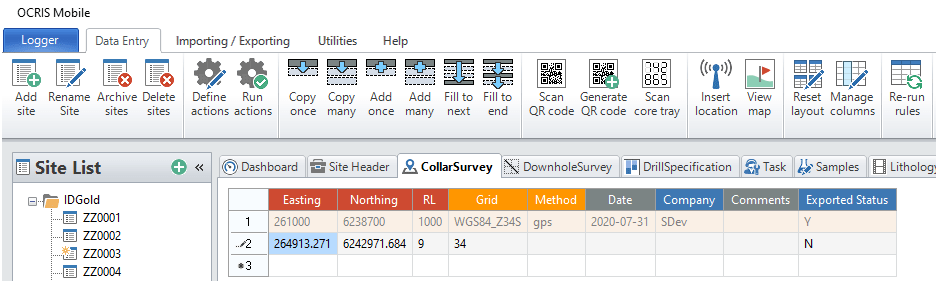
You may need to add additional or utilise a Worksheet Action to add default values to cells.
View map
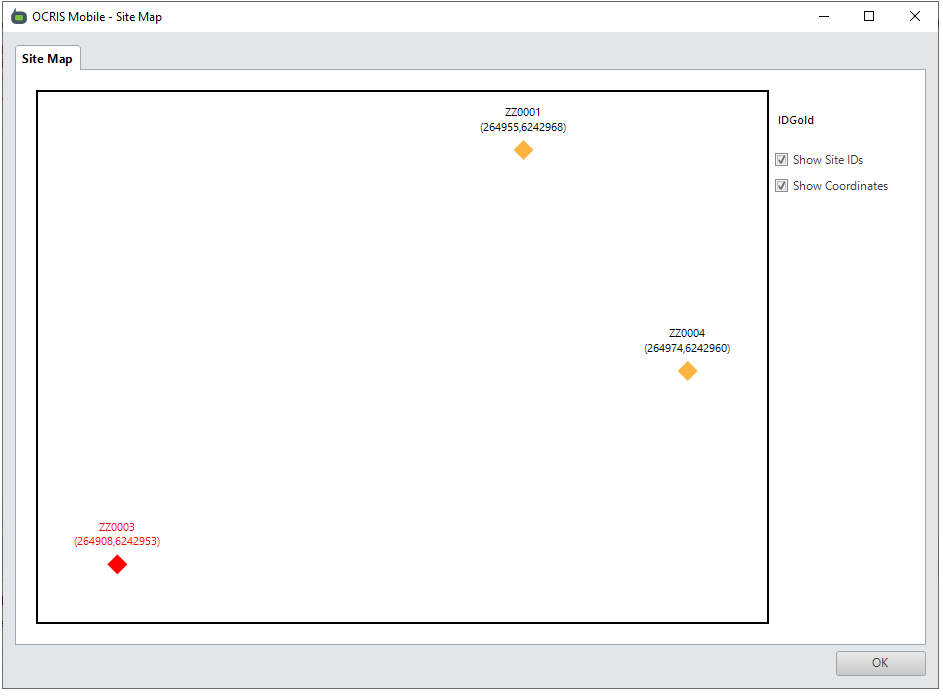
It is possible to view the location of data in OCRIS Mobile relative to other data points via a basic map interface. To see where the data lies, click on the View map button.
OCRIS Mobile will open a form that displays the location of all Sites in the designated worksheet that was set by the System Administrator.
Comments
0 comments
Please sign in to leave a comment.